
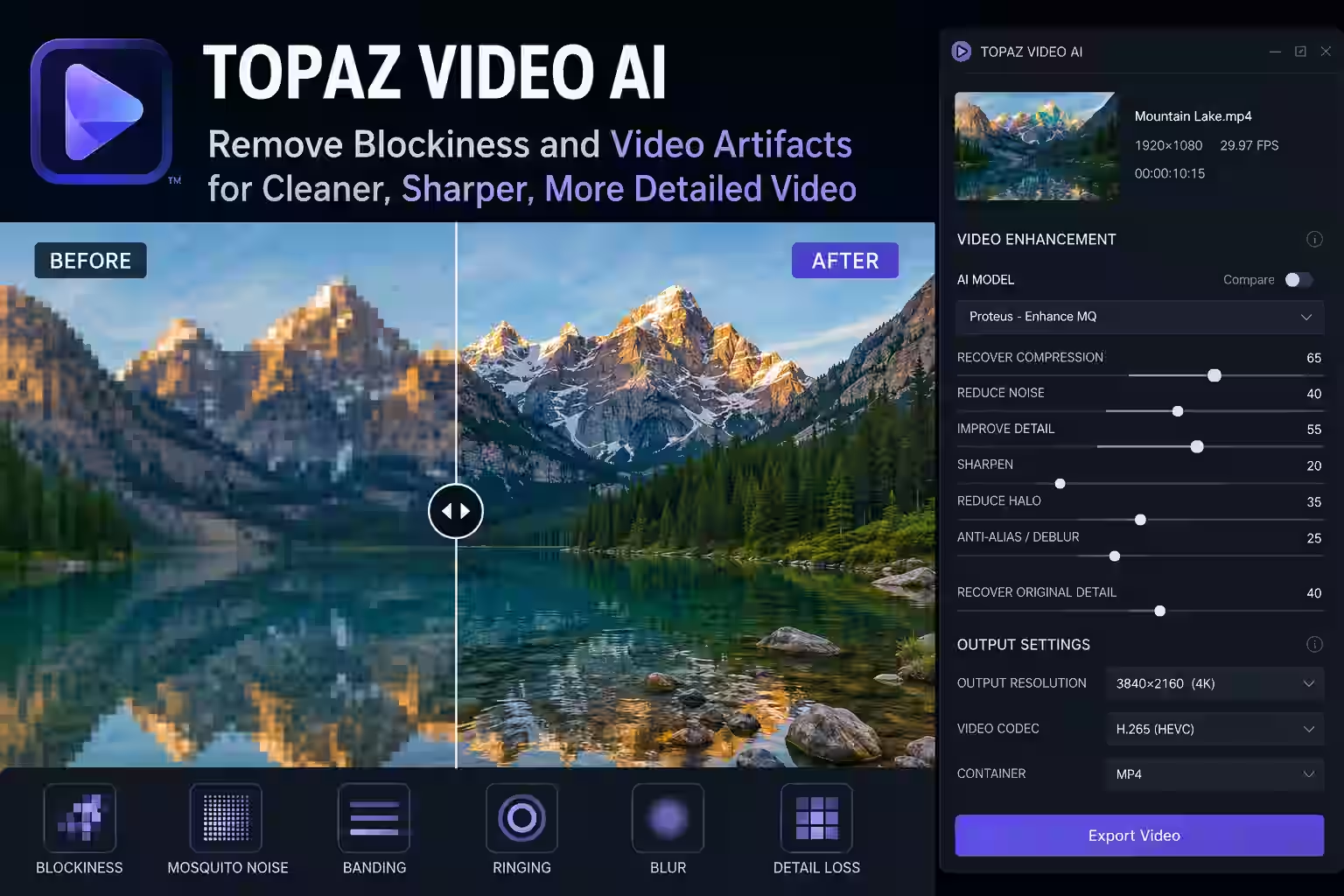
Topaz Video AI to remove blockiness helps us clean pixelated, heavily compressed, and low-quality footage without relying on excessive sharpening. When a video contains visible squares, smeared textures, mosquito noise, ringing, banding, or unstable details, the right enhancement workflow can make the image cleaner, more consistent, and easier to watch.
In this guide, we explain how to use Topaz Video AI to remove blockiness, choose an appropriate AI model, test the most important settings, avoid common restoration mistakes, and export the finished video without introducing another layer of compression damage.
Why Use Topaz Video AI to Remove Blockiness?
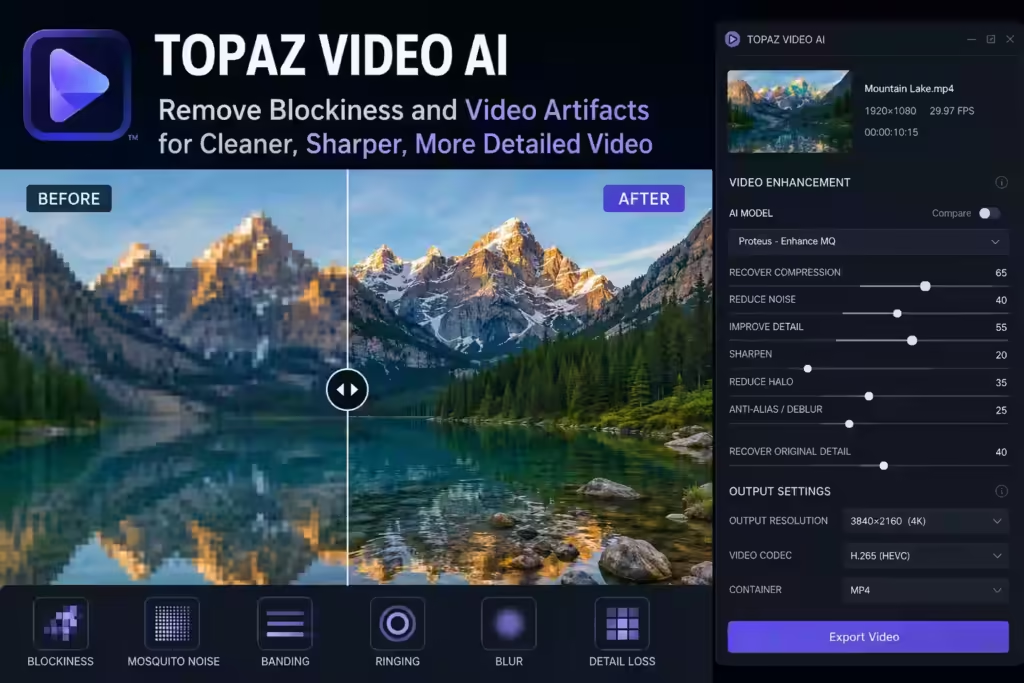
Blockiness usually appears when a video has been encoded at an insufficient bitrate or compressed repeatedly. Instead of preserving all the original visual information, the codec simplifies parts of the image into larger regions. Those regions may become visible as square or rectangular blocks, particularly in shadows, skies, water, smoke, foliage, fast movement, and scenes with subtle color gradients.
The problem is rarely limited to macroblocking. A damaged file may also contain mosquito noise around edges, blurred faces, color banding, halos, jagged diagonal lines, flickering textures, and detail that changes unnaturally from frame to frame.
Using Topaz Video AI to remove blockiness gives us several ways to reduce these defects. The software analyzes the surviving structure of the footage and attempts to produce cleaner edges, more stable textures, and a more coherent image. It cannot recreate every detail that was permanently discarded during compression, but it can make the remaining information look considerably more natural.
Common Video Artifacts We Can Reduce
Before choosing a model, we should identify the defects visible in the source. Different artifacts require different levels of correction.
Macroblocking appears as large square areas, especially during motion. Mosquito noise looks like crawling or shimmering pixels around text and high-contrast edges. Ringing creates bright or dark outlines around objects. Banding turns smooth gradients into visible steps. Compression blur removes texture from hair, skin, grass, fabric, and architecture. Temporal instability causes reconstructed details to pulse or flicker while the video plays.
A careful workflow with Topaz Video AI to remove blockiness should reduce the most distracting defects without erasing legitimate texture. The goal is not to force every frame to look unnaturally sharp. A stable, slightly softer result often appears more realistic than an aggressively enhanced image filled with false details.
How to Use Topaz Video AI to Remove Blockiness
We begin by importing the highest-quality version of the source file. When several copies are available, we should choose the version with the largest resolution, highest bitrate, and fewest previous exports. A restoration can only work with the information present in the file, so starting with the best source is essential.
Next, we inspect several representative sections at 100% magnification. The test areas should include a face, a dark scene, fast movement, fine texture, small text, and a smooth gradient such as a wall or sky. These scenes expose weaknesses that may remain hidden in an easy static shot.
For the first test, we keep the output at the original resolution. This makes it easier to determine whether Topaz Video AI to remove blockiness is actually cleaning the source or merely disguising artifacts through enlargement. Once the cleanup looks stable, we can test a moderate upscale to 1080p or 4K.
Best AI Models for Removing Blocky Video
Use Iris in Topaz Video AI to Remove Blockiness
Iris is a useful starting point for low- to medium-quality footage containing compression damage, noise, and weak facial detail. It can be especially effective for interviews, family recordings, older digital clips, downloaded web videos, and footage in which faces have become soft or distorted.
When we use Iris with Topaz Video AI to remove blockiness, we render a short preview containing both faces and background detail. We look for smoother block transitions, clearer facial structure, and more stable textures. At the same time, we check whether eyes, teeth, hair, and skin have become overly defined.
When the output looks plastic or artificially reconstructed, we reduce the enhancement strength or recover more of the original detail. Facial recovery should improve recognition and clarity without changing the person’s natural appearance.
Use Proteus in Topaz Video AI to Remove Blockiness
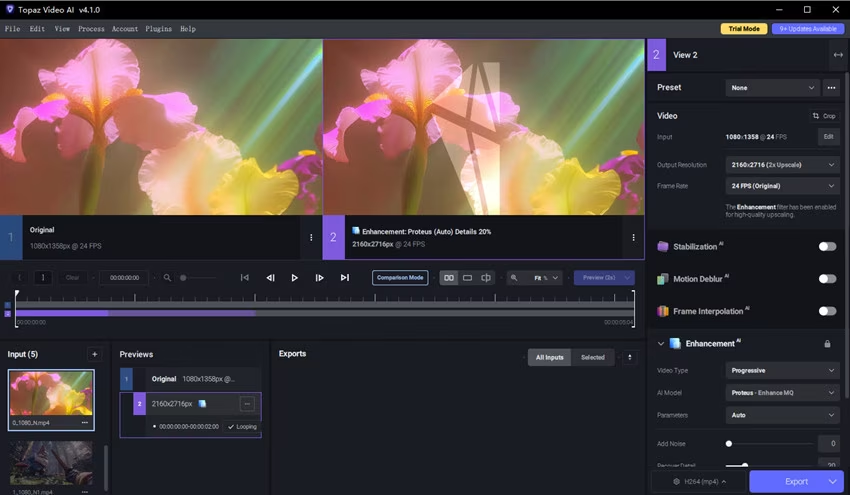
Proteus is appropriate when we need more control over the restoration. It allows us to balance compression recovery, detail reconstruction, noise reduction, sharpening, dehaloing, anti-aliasing, and related corrections according to the source.
For Topaz Video AI to remove blockiness, compression recovery should usually come before strong sharpening. Compression blocks already create artificial edges. Sharpening them too early can make the square pattern more visible.
We first increase compression correction until the large block boundaries become less distracting. We then add enough noise reduction to stabilize dirty textures. Detail recovery can be introduced gradually, followed by mild sharpening only when genuine edges remain too soft.
Every adjustment should solve a visible problem. Maximizing all available controls usually creates an unnatural result, unstable textures, or excessive artificial detail.
Use Artemis for a Balanced Automatic Result
Artemis is a practical option when we want a more automated balance of detail enhancement, noise reduction, and artifact correction. Variants intended for low-, medium-, and high-quality material allow us to match processing strength to the condition of the source.
For heavily damaged footage, a low-quality option may provide stronger cleanup. For moderate compression, a medium-quality model may preserve more texture. Relatively clean material generally benefits from a less aggressive setting.
When testing Artemis with Topaz Video AI to remove blockiness, we compare it directly with Iris and Proteus. The most powerful-looking preview is not always the best. We choose the model that produces the cleanest motion, most believable texture, and least flicker across the entire scene.
Best Settings for Topaz Video AI to Remove Blockiness
There is no universal preset because video quality depends on resolution, codec, bitrate, lighting, motion, and encoding history. However, the following starting points provide a controlled basis for testing.
Settings for Heavily Compressed Low-Resolution Footage
For a 360p, 480p, or damaged standard-definition clip, we begin with Iris Low Quality, Artemis Low Quality, or a carefully adjusted Proteus setup.
Recommended starting settings include:
- Output resolution: Original resolution for the first preview
- Compression recovery: Moderate to strong
- Noise reduction: Moderate
- Detail recovery: Low to moderate
- Sharpening: Minimal
- Recover Original Detail: Moderate
- Grain: Optional and subtle
These settings prioritize artifact removal rather than sharpness. Detail recovery should remain conservative. When the model invents texture in faces, hair, grass, or fabric, we reduce the enhancement strength.
A small amount of recovered original detail can help maintain authenticity. Once the video appears clean and stable at the source resolution, we can test a moderate upscale.
Settings for Moderately Blocky 720p or 1080p Video
For footage that is still watchable but contains visible compression, Proteus is often a practical choice. We begin with automatic analysis or relative adjustments and then make small corrections.
Recommended starting settings include:
- Compression recovery: Moderate
- Noise reduction: Low to moderate
- Detail recovery: Moderate
- Sharpening: Low
- Dehalo: Only when visible outlines are present
- Anti-aliasing: Only when diagonal lines appear jagged
- Recover Original Detail: Low to moderate
This controlled approach allows Topaz Video AI to remove blockiness while protecting existing detail that does not need to be rebuilt.
We should avoid applying every correction simply because it is available. A control should only be increased when it addresses a visible defect in the source.
Settings for Mild Compression Artifacts
Relatively clean footage with minor web compression does not require aggressive restoration. We can test Artemis Medium Quality, Artemis High Quality, or Proteus with low correction values.
Recommended starting settings include:
- Compression recovery: Low
- Noise reduction: Minimal
- Detail recovery: Conservative
- Sharpening: Low
- Recover Original Detail: Moderate
- Output resolution: Based on the final delivery format
Excessive processing may erase fine texture that already exists. The cleanest result is often produced by the least aggressive model that successfully reduces the visible defect.
Topaz Video AI to Remove Blockiness Without Oversharpening
Oversharpening is one of the most common restoration mistakes. Sharpening increases contrast around edges, but it cannot distinguish perfectly between genuine object boundaries and compression-generated blocks.
Too much sharpening can produce:
- Harsh or unnatural skin
- Bright outlines around objects
- Crawling edges during movement
- Flickering foliage
- Unstable hair texture
- Exaggerated eyes and teeth
- More visible macroblocks
- Artificial detail around text
When using Topaz Video AI to remove blockiness, we clean the image first and sharpen it only after the block structure has been reduced.
We inspect the result at normal playback speed as well as frame by frame. A paused image may look impressively detailed while the same texture flickers during movement. Temporal stability is more important than maximum sharpness.
A slightly softer image with consistent details usually looks more professional than an extremely sharp image filled with flicker and false texture.
Recover Original Detail for a Natural Image
The Recover Original Detail control can help when the enhanced footage looks overly smooth, synthetic, or painted. It blends part of the source image back into the processed result, allowing us to preserve natural skin texture, fabric, hair, and background detail.
This control is particularly useful when:
- Skin becomes unnaturally smooth
- Hair appears painted or generated
- Fabric loses its original texture
- Background detail becomes artificial
- Fine textures change between frames
- The entire image appears overprocessed
However, a high value may also restore blockiness, ringing, and noise. We adjust the control gradually while viewing difficult areas.
When Topaz Video AI to remove blockiness creates an output that looks too clean or artificial, a measured amount of original detail can make the image feel more credible.
Preview Before Processing the Entire Video
A complete export may require substantial processing time, so we should never rely on a single preview. We render short samples from at least three parts of the video:
- A relatively clean scene
- The most heavily compressed scene
- A sequence containing significant movement
- A close-up containing a face
- A scene with text or graphics
- A dark shot with gradients and shadows
We compare the source and enhanced versions side by side. We check faces, text, shadows, gradients, foliage, hair, and moving edges. We also verify audio synchronization when the source contains sound.
Testing several scenes ensures that Topaz Video AI to remove blockiness works consistently throughout the project. Settings that improve one shot may be too aggressive for another, especially when the video combines footage from different cameras, downloads, or recording formats.
Should We Upscale While Removing Blockiness?
Upscaling can improve presentation, but it should not be confused with artifact removal. Enlarging a damaged 480p file directly to 4K may magnify its weaknesses and encourage the AI model to generate too much replacement detail.
A better workflow is to clean the source at its original resolution or with a moderate upscale. Once the blocks, noise, and ringing are controlled, we can evaluate whether a larger output provides a genuine benefit.
For many low-resolution sources, 720p or 1080p offers a more believable target than 4K. The correct resolution is the one that improves viewing quality without making reconstructed textures obvious.
We should also consider the intended use. A restored family recording viewed on a television may benefit from a 1080p output, while a video intended for professional editing may require a larger high-quality master.
Add Subtle Grain to Improve Texture
After strong cleanup, some footage may look sterile or waxy. A small amount of grain can help repaired areas blend together, soften minor banding, and restore a more organic texture.
Grain should remain subtle. It should not cover facial detail or make the video visibly noisy. We use it as a finishing tool, not as a substitute for proper artifact correction.
Applied carefully after Topaz Video AI to remove blockiness, fine grain can make gradients, skin, walls, skies, and backgrounds appear more natural.
Grain can also help prevent extremely smooth areas from looking digitally generated. However, adding too much grain may increase the required export bitrate and make online compression more visible.
Export Settings After Topaz Video AI to Remove Blockiness
The export must preserve the improvement achieved during restoration. A low-bitrate delivery file can immediately recreate blockiness, banding, and mosquito noise.
For an editable master, we use a high-quality intermediate or lossless format supported by our workflow. ProRes is commonly useful for editing, while lossless formats or image sequences can be appropriate for archiving and advanced post-production.
These options create larger files, but they reduce the risk of adding visible compression before the project is finished.
For direct delivery, common options include:
- H.264 for broad compatibility
- H.265 or HEVC for efficient high-resolution delivery
- AV1 for supported modern workflows
- VP9 for compatible platforms
- ProRes for professional editing
- Lossless or image-sequence formats for archiving
We select a quality level or bitrate appropriate for the resolution, frame rate, movement, and texture complexity of the video.
We avoid repeated lossy exports. The preferred process is to create one high-quality master, perform any additional editing from that master, and encode the final web version only once.
Two-Pass Workflow for Difficult Video Artifacts
Some severely damaged videos benefit from separating artifact removal and enlargement into two stages.
During the first pass, we focus on:
- Removing compression blocks
- Reducing noise
- Correcting halos
- Stabilizing edges
- Preserving natural texture
- Maintaining the original resolution
During the second pass, we focus on:
- Moderate upscaling
- Controlled detail reconstruction
- Mild sharpening
- Subtle grain
- Final delivery settings
A two-pass workflow is not automatically better. It is useful when one aggressive enhancement produces unstable results or when the source requires distinctly different cleanup and enlargement treatments.
When using Topaz Video AI to remove blockiness in two stages, we export the first pass in a high-quality format. A low-quality intermediate file could add new artifacts before the second enhancement begins.
Common Mistakes to Avoid
Applying Maximum Enhancement Values
Stronger settings do not always produce a better restoration. Excessive processing can create false details, flickering textures, distorted faces, and artificial edges.
Judging the Result from One Frame
A clean still frame may hide movement-related problems. We always inspect normal-speed playback to identify flicker, pulsing, and unstable reconstructed textures.
Upscaling Before Correcting Compression
A large upscale can magnify blockiness and ringing. We correct the major artifacts before attempting an aggressive enlargement.
Combining Strong Denoising and Sharpening
Heavy noise reduction may erase texture, while heavy sharpening creates harsh edges around smooth surfaces. The result can look artificial and inconsistent.
Using the Wrong Model for the Source
A model designed for heavily damaged footage may overprocess clean material. A mild model may not provide enough correction for a severely compressed file.
Exporting at an Insufficient Bitrate
Even a successful Topaz Video AI to remove blockiness workflow can be undone by aggressive final compression. We use an appropriate quality setting and preserve a high-quality master.
Complete Topaz Video AI to Remove Blockiness Workflow
- Import the highest-quality source available.
- Identify macroblocking, noise, ringing, banding, blur, and flicker.
- Confirm whether the source is progressive or interlaced.
- Select several difficult scenes for testing.
- Keep the first preview at the original resolution.
- Test Iris for degraded footage and facial recovery.
- Test Proteus when detailed manual control is needed.
- Test Artemis for a balanced automatic result.
- Correct compression before increasing sharpening.
- Preserve believable texture with restrained detail recovery.
- Compare still frames and normal-speed movement.
- Recover original detail when the result looks synthetic.
- Add subtle grain only when it improves texture.
- Upscale conservatively after cleanup.
- Export a high-quality master before creating the final delivery file.
Frequently Asked Questions
Can Topaz Video AI Completely Remove Blockiness?
The software can significantly reduce visible compression blocks and related artifacts, but results depend on the quality of the source. When a codec has permanently discarded important visual information, no restoration method can recover every original detail.
The most realistic objective is to make the footage cleaner, steadier, and less distracting without creating excessive false detail.
Which Model Is Best for Blocky Video?
Iris is a useful starting point for compressed footage containing faces, noise, and degraded detail. Proteus is suitable when we need manual control, while Artemis can provide a balanced automatic enhancement.
We should render short previews from all three models rather than selecting one based only on its name or default settings.
Should We Remove Blockiness Before Upscaling?
In most cases, yes. Cleaning the compression artifacts at the source resolution makes it easier to evaluate the restoration. Once the blockiness has been controlled, we can test a moderate upscale.
Why Does the Enhanced Video Look Artificial?
An artificial result is usually caused by excessive detail recovery, sharpening, denoising, or facial reconstruction. We reduce the strongest settings and use Recover Original Detail to blend part of the source texture back into the output.
Why Does Blockiness Return After Exporting?
The final export may be using an insufficient bitrate or an aggressive compression setting. We should export a high-quality master and create the delivery version with a bitrate appropriate for the resolution and movement in the video.
Official Resources for Better Video Enhancement and Export
For additional technical information about the enhancement models mentioned in this guide, we recommend consulting the official Topaz Video AI enhancement model documentation. This resource explains how models such as Iris, Proteus, and Artemis are designed for different source-quality levels, noise conditions, and compression problems.
After using Topaz Video AI to remove blockiness, the export format should preserve the restored detail without introducing another aggressive layer of compression. The official Topaz Video AI encoders and containers guide provides current information about supported video formats, codecs, containers, and professional export options.
For videos intended for YouTube, we can also consult the official YouTube recommended upload encoding settings. These guidelines cover frame rate, video codec, audio codec, aspect ratio, color space, and recommended bitrate ranges for different resolutions.
Advanced users who need greater control over codecs, bitrate, quality parameters, and encoding behavior can review the official FFmpeg codec documentation. FFmpeg is particularly useful for creating customized delivery files after exporting a high-quality master from Topaz Video AI.
Final Results with Topaz Video AI to Remove Blockiness
Using Topaz Video AI to remove blockiness can make compressed footage cleaner, steadier, and more professional. The best results come from matching the enhancement model to the source, applying conservative corrections, reviewing several representative scenes, and protecting the final video with appropriate export settings.
Iris can be effective for degraded footage and facial detail, Proteus provides precise control, and Artemis offers a balanced automatic workflow. By correcting compression artifacts before aggressive sharpening or upscaling, we can reduce visible blocks, improve edge stability, preserve natural texture, and produce a more credible final video.

About author


Add comment
You must be logged in to post a comment.