
How to Upscale Videos with Topaz Video AI 7
Video quality plays a significant role in today’s digital world. Whether you’re creating YouTube videos, restoring old family footage, producing commercial projects, or improving social media content, higher-resolution videos provide a more professional viewing experience.
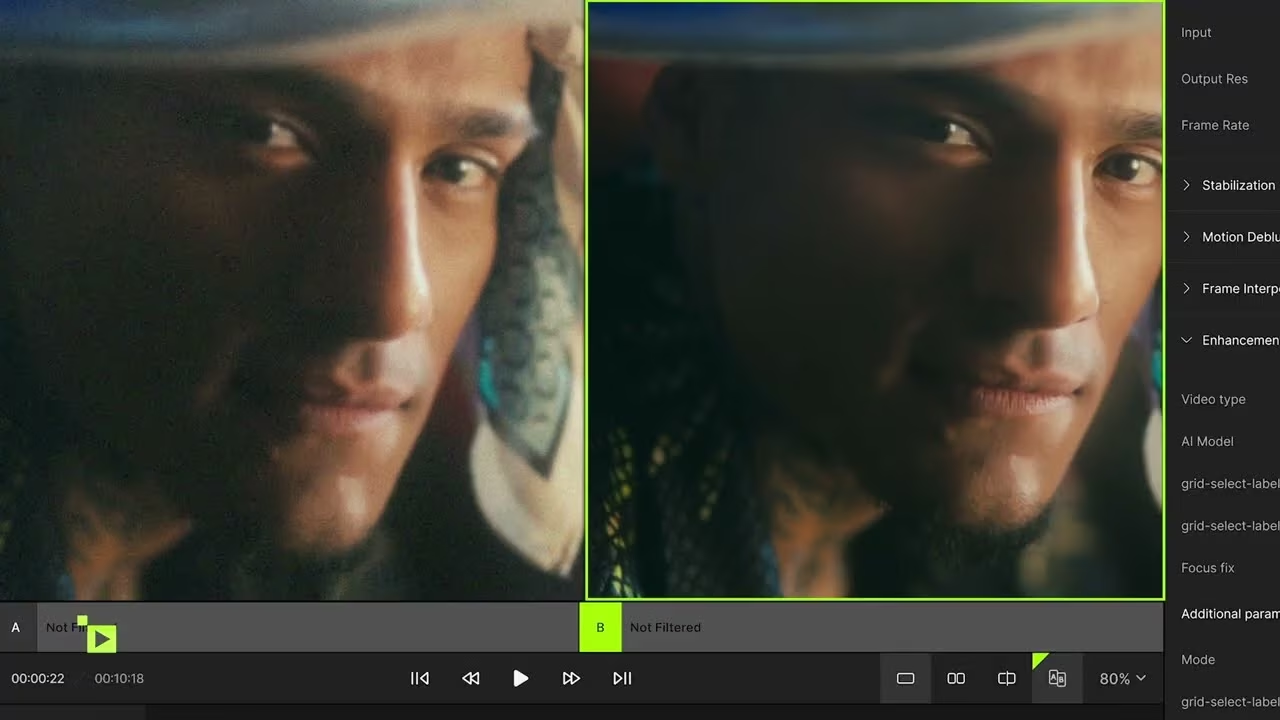
Many older videos were recorded in low resolutions such as 480p or 720p. Simply increasing the resolution using traditional editing software often results in blurry images because the software only stretches existing pixels. Artificial intelligence works differently by generating new details instead of simply enlarging the image.
If you’re looking for the easiest way to learn how to upscale videos with Topaz Video AI 7, you’ve come to the right place. This complete step-by-step guide explains how to upscale videos with Topaz Video AI 7, from importing your footage and choosing the best AI model to exporting a professionally enhanced video with exceptional quality.
By the end of this guide, you’ll understand how to use the software efficiently and achieve the best possible results for YouTube videos, old footage, commercial projects, and high-resolution content.
What Is AI Video Upscaling?
AI video upscaling is the process of increasing a video’s resolution using artificial intelligence instead of traditional interpolation.
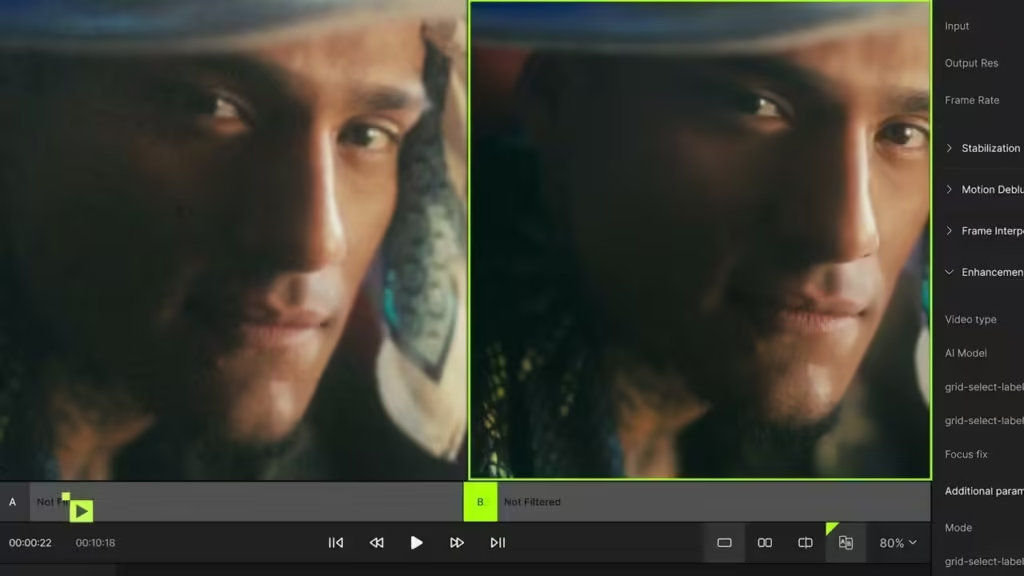
Unlike conventional resizing methods, Topaz Video AI analyzes every frame individually. The AI models identify textures, edges, facial details, objects, and fine patterns before reconstructing additional pixels that appear natural.
This allows lower-resolution footage to look significantly sharper while preserving realistic details. Learning how to upscale videos with Topaz Video AI 7 gives creators the ability to improve image quality while maintaining natural textures, clean edges, and realistic details that traditional upscaling methods simply cannot reproduce.
Common upscaling resolutions include:
- 720p → 1080p
- 1080p → 4K
- 4K → 8K
Because every frame is analyzed independently, the final result often looks dramatically better than traditional upscaling methods.
Why Choose Topaz Video AI 7?
Topaz Video AI 7 has become one of the most popular AI-powered video enhancement applications because it combines multiple technologies into one professional workflow.
Besides video upscaling, it can also:
- Reduce digital noise
- Restore compressed footage
- Recover facial details
- Stabilize shaky videos
- Improve motion quality
- Generate smoother slow-motion footage
- Increase frame rates using AI
These tools allow creators to improve almost any type of video without requiring advanced editing experience.
Before You Start
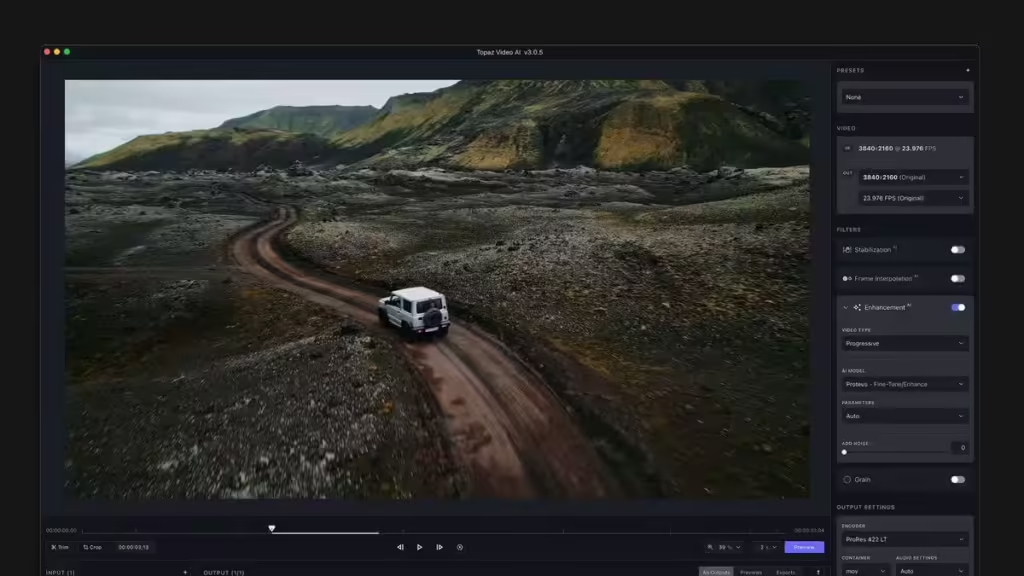
Before beginning the upscaling process, ensure that your computer meets the recommended hardware specifications.
If you’re unsure whether your computer is powerful enough, read our Topaz Video AI 7 System Requirements guide before processing large video files.
Using a modern GPU, sufficient RAM, and SSD storage will dramatically reduce rendering times.
If you haven’t installed the software yet, follow our Topaz Video AI 7 Installation Guide before continuing.
Before you learn how to upscale videos with Topaz Video AI 7, make sure the software is correctly installed and your computer meets the recommended hardware specifications. Using the latest graphics drivers, sufficient RAM, and a dedicated GPU will help you achieve faster rendering speeds and better AI processing performance throughout the entire workflow.
Step 1 – Import Your Video
Launch Topaz Video AI 7.
Click Browse or simply drag and drop your video into the main window.
The software supports numerous video formats including:
- MP4
- MOV
- AVI
- MKV
- MPEG
- ProRes
Once imported, Topaz Video AI automatically analyzes your footage before suggesting appropriate AI models.
Step 2 – Choose the Right AI Model
Selecting the correct AI model is one of the most important steps.
Different videos require different enhancement methods depending on their quality.
For older or low-resolution footage, choose a model optimized for restoration.
For cleaner HD footage, select an enhancement model designed to preserve fine details while increasing resolution.
Experimenting with multiple AI models and comparing previews often produces the best final result.
Step 3 – Select the Output Resolution
Topaz Video AI allows you to export videos at higher resolutions while maintaining impressive image quality.
Popular output options include:
- Full HD (1080p)
- 2K
- 4K UHD
- 8K UHD
Although higher resolutions provide sharper results, they also require more rendering time and additional storage space.
Choose a resolution that matches your final project and hardware capabilities. One of the biggest advantages of learning how to upscale videos with Topaz Video AI 7 is the ability to transform low-resolution footage into detailed Full HD, 4K, or even 8K videos using advanced artificial intelligence while preserving sharpness and natural image quality.
Step 4 – Preview the Results
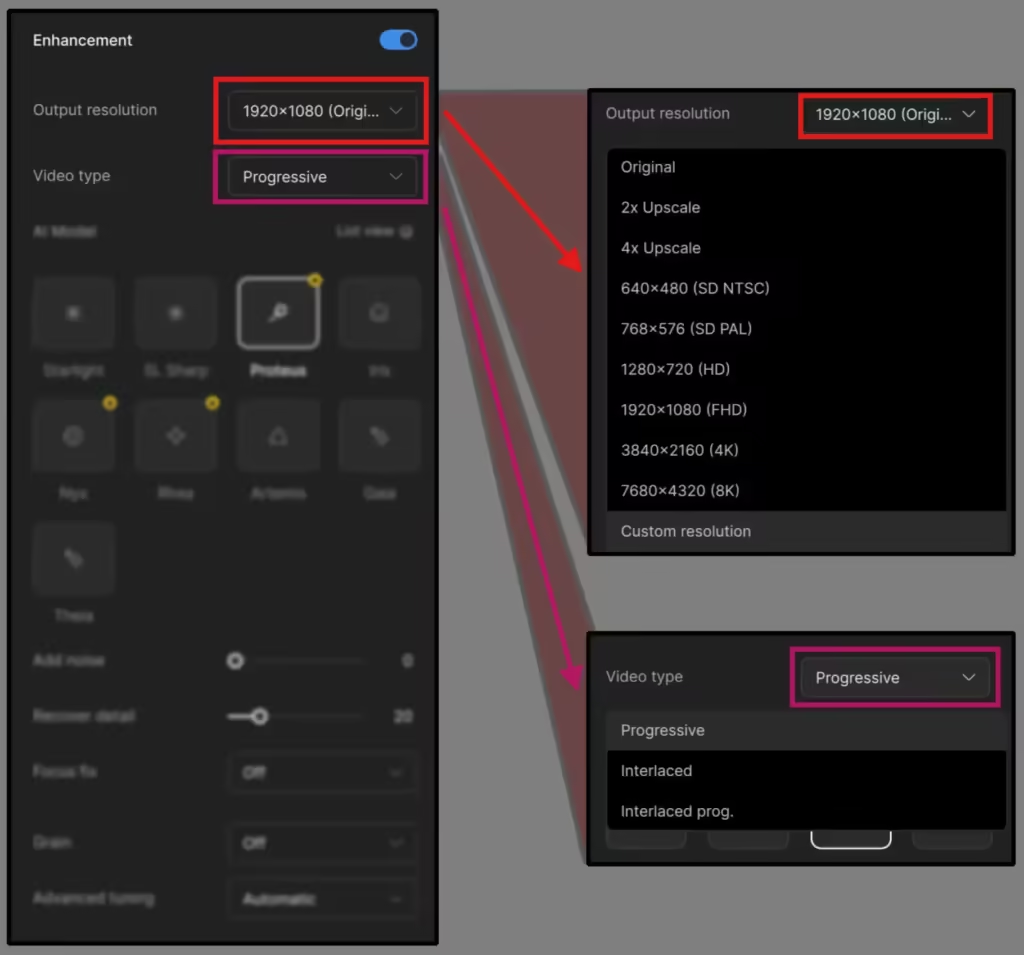
Before exporting the entire project, use the Preview feature.
Previewing allows you to compare the original footage with the AI-enhanced version.
Pay attention to:
- Facial details
- Hair texture
- Building edges
- Text readability
- Noise reduction
- Motion quality
Small adjustments at this stage can significantly improve the final output.
Step 5 – Export Your Enhanced Video
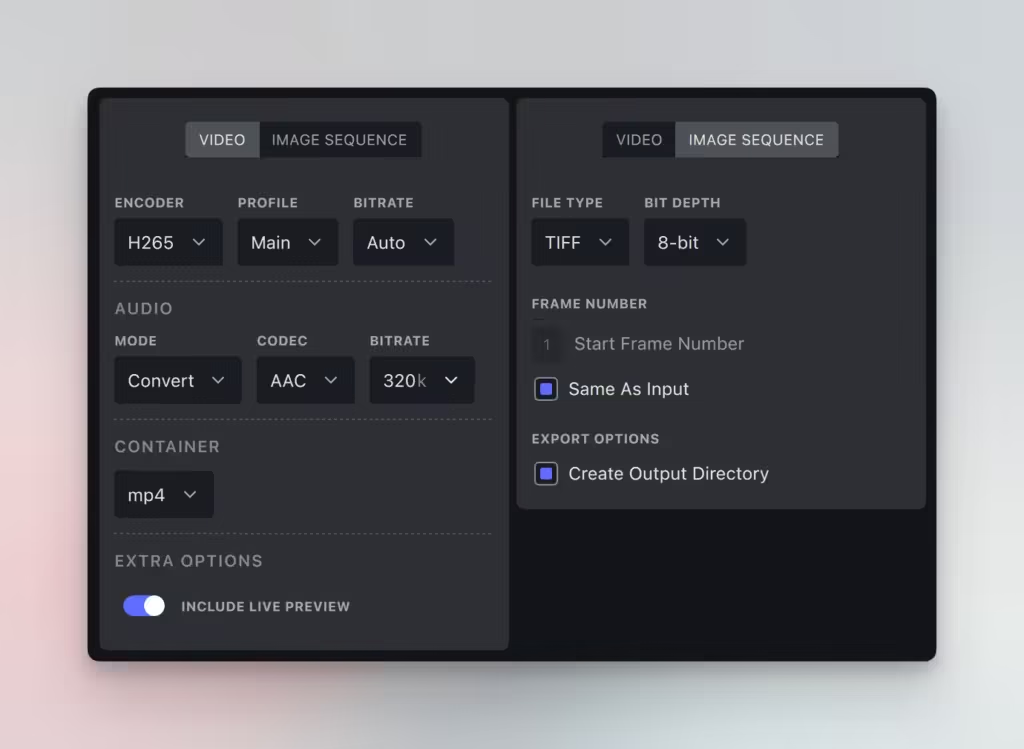
Once you’re satisfied with the preview, configure your export settings.
Choose:
- Output format
- Resolution
- Frame rate
- Compression settings
- Output folder
Click Export and allow the AI engine to process your project.
Rendering time depends on your computer’s specifications, video length, selected AI model, and output resolution.
Best Upscaling Tips
To achieve the highest-quality results:
- Always begin with the best source video available.
- Avoid repeatedly upscaling the same video.
- Use SSD storage for faster rendering.
- Keep graphics drivers updated.
- Preview different AI models before exporting.
- Close unnecessary background applications during rendering.
- Save projects on a fast NVMe SSD whenever possible.
These recommendations help maximize both quality and processing speed.
Common Mistakes When Upscaling Videos
Although Topaz Video AI 7 is designed to make video enhancement simple, choosing the wrong settings can reduce image quality or significantly increase rendering time. Avoiding these common mistakes will help you achieve better results.
Upscaling Beyond the Source Quality
Artificial intelligence can dramatically improve video quality, but it cannot recreate information that never existed. Upscaling a very low-quality video directly to 8K may not always produce the best results.
For older videos, increasing the resolution to 1080p or 4K often provides a more natural-looking result.
Choosing the Wrong AI Model
Every AI model is trained for a different purpose. Some are optimized for restoring old footage, while others are designed for clean digital videos.
Testing several models using the Preview feature before exporting the entire project helps you choose the best option for your footage.
Ignoring Hardware Limitations
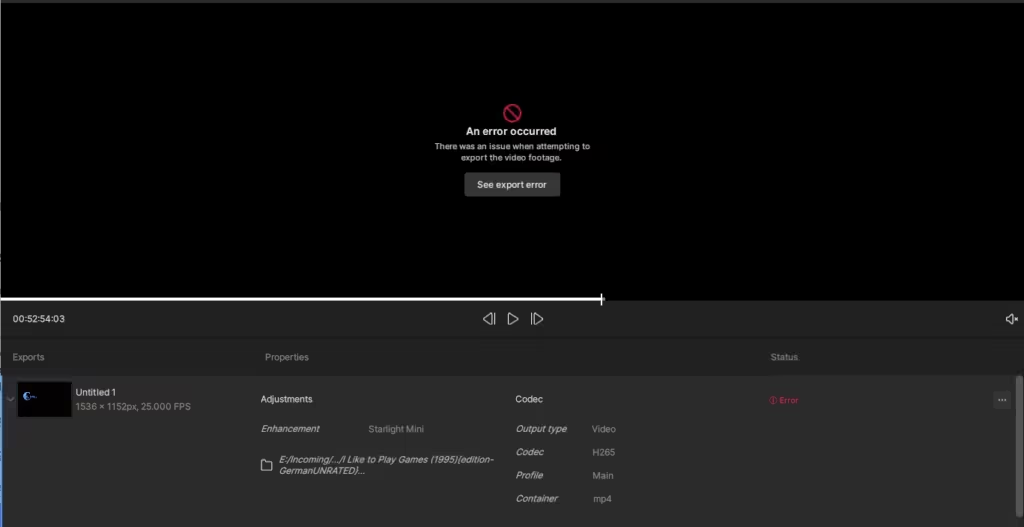
AI video enhancement requires significant processing power. If your computer only meets the minimum hardware requirements, rendering large 4K or 8K projects may take several hours.
Before starting large projects, review our Topaz Video AI 7 System Requirements guide to make sure your hardware is suitable.
Best Settings for Different Types of Videos
Different types of footage require different enhancement settings.
Old Family Videos
- AI Restoration Model
- Moderate Noise Reduction
- Output Resolution: 1080p or 4K
YouTube Videos
- AI Enhancement Model
- Light Sharpening
- Output Resolution: 4K
Drone Footage
- AI Detail Recovery
- Motion Stabilization
- Output Resolution: 4K
Commercial Projects
- Maximum Quality AI Model
- Dedicated GPU Acceleration
- Output Resolution: 4K or 8K
Choosing the correct settings for your footage will often produce better results than simply selecting the highest available resolution.
Topaz Video AI 7 vs Traditional Video Upscaling
Traditional video editing software enlarges existing pixels when increasing resolution. This often creates soft edges, blurry textures, and noticeable image artifacts.
Topaz Video AI 7 works differently. Instead of stretching pixels, it uses machine learning models trained on millions of image samples to predict missing details and reconstruct each frame with improved clarity.
This AI-powered approach produces sharper edges, cleaner textures, and a more natural appearance, especially when restoring older or low-resolution footage.
For users who regularly enhance videos, AI upscaling offers a significant improvement over conventional resizing techniques.
To learn more about AI video enhancement technology, visit the official Topaz Labs website.
How Long Does AI Upscaling Take?
Rendering time depends on several factors, including:
- Video length
- Original resolution
- Target resolution
- Selected AI model
- Graphics card performance
- Processor speed
- Available RAM
A short Full HD clip may finish within minutes on a high-end computer, while a long 4K project can take considerably longer.
Using a dedicated NVIDIA RTX graphics card and fast NVMe SSD storage can significantly reduce rendering times.
Before finishing this guide on how to upscale videos with Topaz Video AI 7, let’s answer some of the most common questions users ask about AI video enhancement, rendering performance, supported formats, and hardware compatibility.
Frequently Asked Questions
Can Topaz Video AI 7 upscale videos to 8K?
Yes. The software supports AI-powered video upscaling up to 8K, depending on your hardware and project requirements.
Does AI upscaling improve video quality?
Yes. Unlike traditional resizing methods, AI upscaling reconstructs image details to produce noticeably sharper and cleaner videos.
Which video formats are supported?
Topaz Video AI 7 supports many popular formats, including MP4, MOV, AVI, MKV, and several professional editing formats.
Is a dedicated GPU required?
A dedicated graphics card is highly recommended for faster AI processing and improved rendering performance.
Can beginners use Topaz Video AI 7?
Absolutely. The interface is intuitive, making it easy for beginners while still providing advanced controls for professional users.
Does Topaz Video AI 7 work offline?
Most video enhancement features work locally on your computer after installation and activation.
Final Thoughts
Learning how to upscale videos with Topaz Video AI 7 is one of the most effective ways to improve video quality using advanced artificial intelligence. Instead of simply enlarging existing pixels, the software intelligently reconstructs details, resulting in sharper images, cleaner textures, smoother edges, and a far more professional final result.
Whether you’re restoring old family memories, enhancing YouTube content, producing commercial videos, or preparing cinematic footage for 4K and 8K displays, Topaz Video AI 7 provides a fast and reliable solution for AI-powered video enhancement. By choosing the correct AI model, using the recommended hardware, and previewing your results before exporting, you can achieve outstanding quality while reducing rendering time.
If you’re ready to experience professional AI video upscaling, Topaz Video AI 7 Lifetime License gives you access to powerful enhancement tools, lifetime activation, and everything you need to start improving your videos today.
Ready to Upscale Your Videos?
Unlock the full potential of AI-powered video enhancement with Topaz Video AI 7. Improve video quality, upscale footage to 4K or 8K, reduce noise, stabilize shaky clips, and restore old videos with advanced machine learning technology.
Get your Topaz Video AI 7 Lifetime License today and start producing sharper, more professional videos in just a few clicks.

About author


Add comment
You must be logged in to post a comment.