
Topaz Video AI 7 System Requirements
Running Topaz Video smoothly requires more than just meeting the minimum hardware specifications. Because the software uses advanced artificial intelligence to upscale videos, remove noise, stabilize footage, and improve image quality, your computer’s processor, graphics card, memory, and storage all play an important role in overall performance.
This guide explains the complete Topaz Video AI 7 System Requirements, including the minimum and recommended specifications for Windows users. Whether you’re editing Full HD, 4K, or even 8K videos, understanding the right hardware can significantly reduce rendering times and improve workflow efficiency.
Why System Requirements Matter
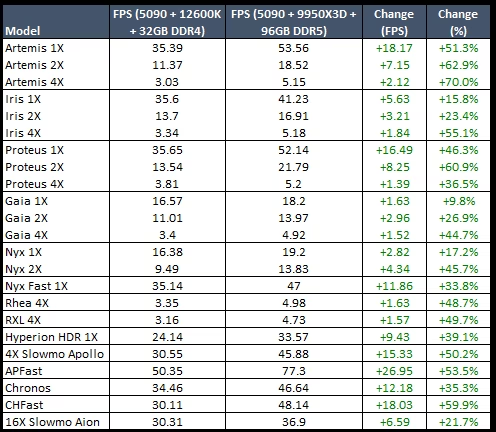
Unlike traditional video editing software, Topaz Video AI performs billions of AI calculations while processing every frame of a video. This means the software relies heavily on your computer’s CPU, GPU, RAM, and storage speed.
Meeting only the minimum requirements allows the software to run, but professional users working with large projects will benefit significantly from faster hardware. A modern graphics card and SSD can reduce rendering times by several times compared to older systems.
If you’re planning to process long videos, upscale to 4K or 8K, or use advanced AI models, investing in recommended hardware will provide a much smoother editing experience.
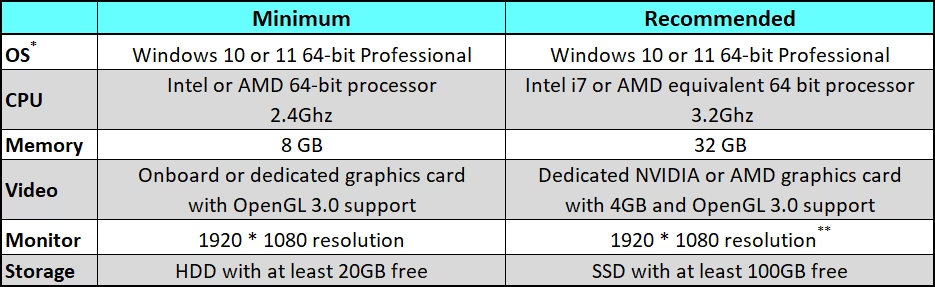
Minimum Topaz Video AI 7 System Requirements
The minimum system requirements allow the software to run and process videos, although performance may vary depending on project complexity.
Operating System
- Windows 10 (64-bit)
- Windows 11 (64-bit)
Processor
- Intel Core i7
- AMD Ryzen 5 or newer
Memory
- Minimum 16 GB RAM
Graphics Card
- Dedicated NVIDIA GPU
- Dedicated AMD GPU
- Intel Arc Graphics
Storage
- Minimum 30 GB available SSD space
While these specifications are sufficient for basic projects, processing large videos may take considerably longer than on higher-end systems.
Recommended Topaz Video AI 7 System Requirements
For the best experience, Topaz Labs recommends using modern hardware capable of handling intensive AI workloads efficiently.
Operating System
Windows 11 (64-bit)
Processor
Intel Core i9
AMD Ryzen 7 or Ryzen 9
Memory
32 GB RAM
Graphics Card
NVIDIA RTX Series
6 GB VRAM or higher
Storage
Fast NVMe SSD
Using these specifications provides noticeably faster rendering speeds, smoother previews, improved stability, and significantly shorter export times when working with AI-enhanced videos.
Graphics Card Requirements
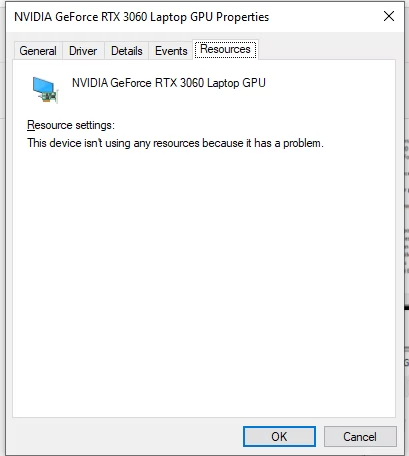
The graphics card is one of the most important components for Topaz Video AI 7 System.
Because AI processing is accelerated using your GPU, a dedicated graphics card can dramatically improve rendering performance.
Recommended NVIDIA graphics cards include:
- RTX 3060
- RTX 3070
- RTX 3080
- RTX 4070
- RTX 4080
- RTX 4090
AMD Radeon graphics cards and Intel Arc GPUs are also supported, although rendering performance may vary depending on the AI model and video resolution.
Users relying on integrated graphics may experience slower processing times and reduced performance when working with larger projects.
How Much RAM Do You Need?
Memory plays a major role in overall system responsiveness while using Topaz Video AI 7 System.
Although the software can operate with 16 GB of RAM, professional creators who edit long videos or process multiple clips simultaneously should consider upgrading to 32 GB or more.
Additional memory helps reduce slowdowns, improves multitasking, and allows the software to process larger AI models more efficiently.
SSD vs HDD Performance
Storage speed is another important factor that affects loading times and rendering performance.
Installing Topaz Video AI 7 on an SSD provides several advantages:
- Faster software startup
- Quicker project loading
- Reduced rendering delays
- Better handling of temporary AI processing files
For the best performance, an NVMe SSD is strongly recommended over a traditional HDD.
Performance Tips for Topaz Video AI 7
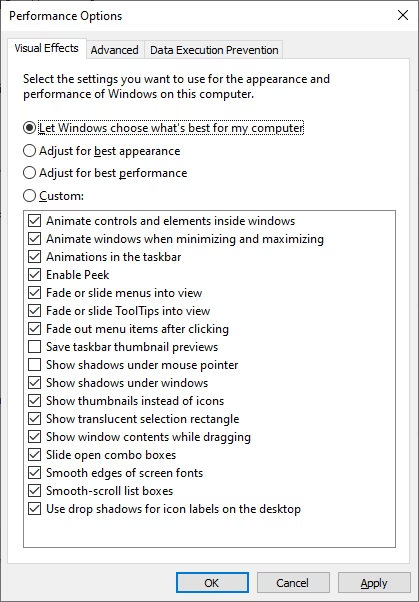
Even if your computer meets the recommended specifications, a few simple optimizations can noticeably improve performance and reduce rendering times.
For the best experience:
- Keep Windows updated to the latest version.
- Install the latest NVIDIA, AMD, or Intel graphics drivers.
- Store your projects on an SSD instead of a traditional hard drive.
- Close unnecessary background applications before processing videos.
- Keep at least 30 GB of free storage available for temporary AI processing files.
- Use the latest version of Topaz Video AI 7 System whenever possible.
- Restart your computer before working on large video projects to free up system resources.
Following these recommendations helps maximize AI processing speed while maintaining overall system stability.
Can Topaz Video AI 7 Run on a Low-End PC?
Yes, but performance will depend on your hardware.
Computers that only meet the minimum system requirements can still run Topaz Video AI 7, although rendering large projects or upscaling videos to higher resolutions may take considerably longer.
Users working with Full HD videos may experience acceptable performance, while 4K and 8K projects benefit significantly from more powerful hardware.
If your computer struggles during rendering, upgrading your graphics card or installing additional RAM will often provide the biggest performance improvement.
How to Check Your Computer Specifications
Before checking your computer specifications, make sure you’ve completed the installation correctly by following our Topaz Video AI 7 Installation Guide.
To check your hardware:
- Press Windows + R.
- Type msinfo32 and press Enter.
- Review your processor, installed memory, and operating system details.
- Open Device Manager and expand Display Adapters to view your graphics card.
Taking a few minutes to verify your hardware can help prevent installation or performance issues later.
Common Performance Problems
Some users experience slower processing due to hardware limitations rather than software issues.
The most common causes include:
- Outdated graphics drivers
- Using an HDD instead of an SSD
- Insufficient RAM
- Integrated graphics instead of a dedicated GPU
- Running multiple heavy applications during AI processing
- Limited free storage space
Addressing these issues can significantly improve rendering speed and overall performance.
Frequently Asked Questions
Does Topaz Video AI 7 work on Windows 11?
Yes. The software fully supports both Windows 10 and Windows 11 (64-bit).
Is 16 GB of RAM enough?
Yes. Sixteen gigabytes is the minimum recommended memory, but 32 GB provides much better performance for larger AI projects.
Do I need a dedicated graphics card?
Yes. Although the software may launch on some systems with integrated graphics, a dedicated GPU is strongly recommended for faster rendering and smoother AI processing.
Is an SSD required?
An SSD is not strictly required, but it is highly recommended. Installing the software and storing your projects on an SSD can noticeably improve loading times and overall performance.
Which graphics card offers the best performance?
Modern NVIDIA RTX graphics cards generally provide excellent performance for AI-powered video enhancement. High-end AMD and Intel Arc graphics cards are also supported.
Can I process 4K and 8K videos?
Yes. Topaz Video AI 7 supports both 4K and 8K video enhancement. However, higher resolutions require more powerful hardware for optimal performance.
Final Thoughts
Meeting the recommended Topaz Video AI 7 System Requirements is one of the best ways to ensure a smooth editing experience and faster AI rendering. While the software can run on many Windows computers, using a modern processor, dedicated graphics card, sufficient memory, and fast SSD storage allows you to take full advantage of its powerful AI capabilities.
Whether you’re enhancing YouTube content, restoring old videos, or producing professional-quality footage, investing in the right hardware will save time and deliver consistently better results.
If you’re ready to start enhancing your videos, explore our Topaz Video AI 7 Lifetime License for instant digital delivery and free installation support.


About author


Add comment
You must be logged in to post a comment.