
Topaz Video AI 7 Installation Guide
Installing Topaz Video AI 7 correctly is essential for achieving the best performance and avoiding activation or compatibility issues. This Topaz Video AI 7 Installation Guide will walk you through every step of the installation process, from checking your system requirements to activating the software and optimizing it for the best AI video enhancement experience.
Whether you’re a beginner or an experienced video editor, this Topaz Video AI 7 Installation Guide will help you install the software quickly and correctly.
Whether you’re a beginner or an experienced video editor, this guide will help you install Topaz Video AI 7 quickly and correctly.
Before Starting the Topaz Video AI 7 Installation
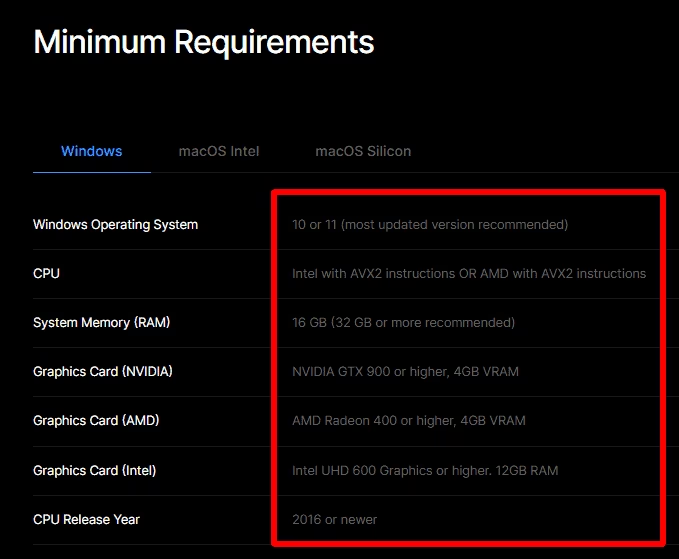
Before starting the installation, make sure your computer meets the recommended system requirements. Since Topaz Video AI uses artificial intelligence for video enhancement, having compatible hardware is important for achieving fast processing speeds and high-quality results.
Operating System
Windows 10 (64-bit)
Windows 11 (64-bit)
Processor
Minimum:
Intel Core i7
Recommended:
Intel Core i9 or AMD Ryzen 7
Memory
Minimum:
16 GB RAM
Recommended:
32 GB RAM
Graphics Card
Dedicated NVIDIA, AMD, or Intel GPU
Recommended:
NVIDIA RTX Series with at least 6 GB VRAM
Storage
Before starting the Topaz Video AI 7 installation, make sure your computer meets all of the recommended hardware requirements above. A powerful GPU and sufficient RAM will significantly improve AI processing speed and overall rendering performance.
Step 1 – Download Topaz Video AI 7
After purchasing your Topaz Video AI 7 Lifetime License, download the installer using the download link included with your order.
Make sure the download is completed successfully before starting the installation.
Avoid downloading the software from unofficial sources. If you need official product information, visit the Topaz Labs website.
Step 2 – Run the Installer
Locate the downloaded installation file.
Double-click the installer.
If Windows asks for permission, select Yes to continue.
Follow the on-screen installation wizard.
Choose the installation folder.
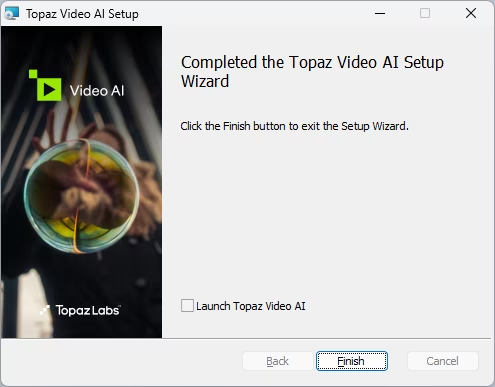
Wait until the installation finishes.
During the Topaz Video AI 7 installation, avoid closing the installer or restarting your computer until the setup has finished successfully.
Step 3 – Launch Topaz Video AI 7
After installation is complete, launch the software from your desktop or Start Menu.
During the first launch, Windows may take a few moments to prepare the application.
If your graphics drivers are outdated, updating them before using the software is recommended.
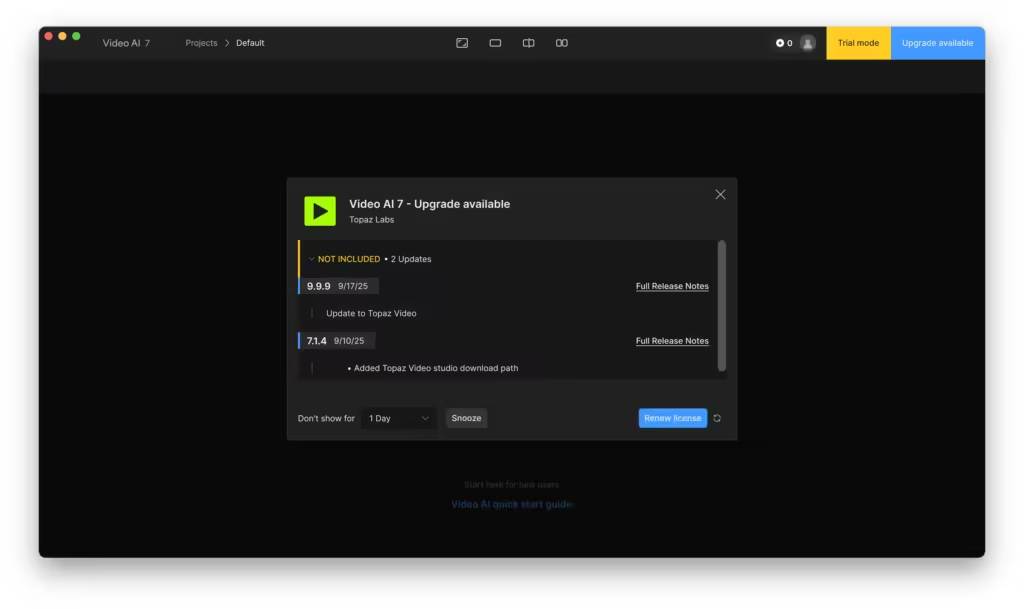
Step 4 – Activate Your License
Enter your activation information exactly as provided after purchase.
Once the activation is completed successfully, the software will be ready to use.
Keep your activation information in a safe place for future reference.
Step 5 – Configure Your Preferences
Before processing your first video, it’s recommended to review the application settings.
Choose your preferred GPU.
Select the processing location.
Configure temporary storage if necessary.
Keeping these settings optimized can significantly improve rendering performance.
First Video Enhancement
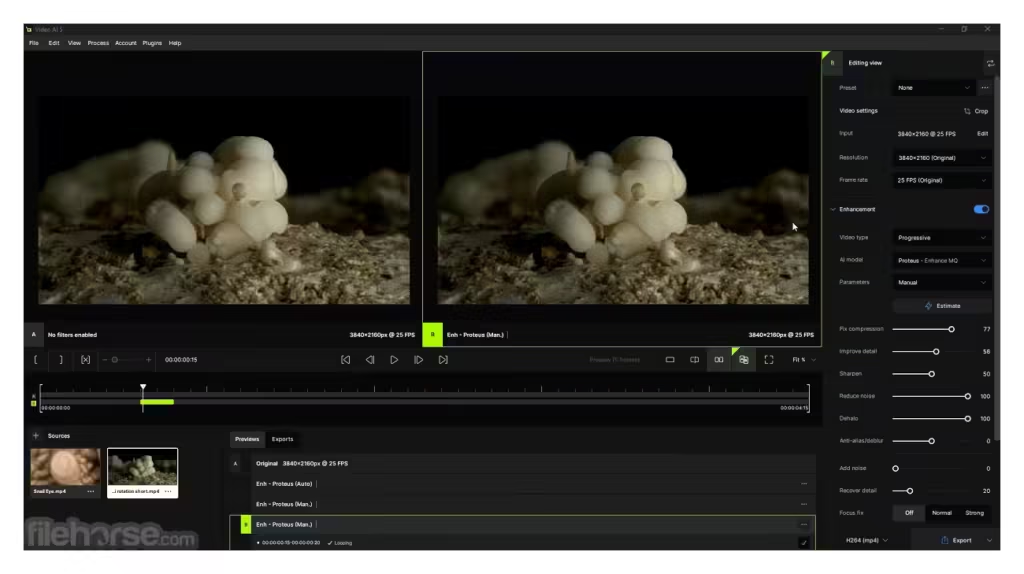
After activation, importing your first video is simple.
Click Browse.
Choose a video from your computer.
Select the AI model that best fits your footage.
Adjust the output resolution.
Preview the result.
Export the enhanced video.
Topaz Video AI automatically applies advanced machine learning to improve image quality while preserving natural details.
Recommended AI Features
Topaz Video AI includes several advanced AI technologies designed for different types of footage.
These include:
- AI Upscaling
- AI Denoise
- Video Stabilization
- Frame Interpolation
- Motion Deblur
- Detail Recovery
- Face Enhancement
- Batch Processing
Each feature is optimized for different video enhancement tasks and helps produce professional-quality results.
Common Installation Problems
Although installation is usually straightforward, some users may encounter common issues.
Installer Doesn’t Open
Run the installer as Administrator.
Temporarily disable antivirus software if necessary.
Download the installer again if the file appears corrupted.
GPU Not Detected
Update your graphics drivers.
Restart your computer.
Verify that your dedicated GPU is enabled.
Activation Failed
Double-check your activation information.
Ensure your internet connection is active.
Restart the software and try again.
If the problem continues, contact support.
Slow Performance
Large AI models require powerful hardware.
For the best performance:
Use an SSD.
Close unnecessary applications.
Update GPU drivers.
Use a dedicated graphics card.
Tips for Best Performance
To achieve the highest-quality AI enhancement:
- Keep Windows updated.
- Install the latest GPU drivers.
- Store videos on an SSD.
- Use a dedicated graphics card whenever possible.
- Close background applications before processing large videos.
- Export videos to a fast storage drive.
These simple optimizations can significantly reduce rendering times.
Frequently Asked Questions
Is Topaz Video AI 7 easy to install?
Yes. The installation process is simple and usually takes only a few minutes.
Does it work on Windows 11?
Yes. Topaz Video AI 7 fully supports both Windows 10 and Windows 11 (64-bit).
Is a graphics card required?
A dedicated GPU is strongly recommended for the best performance and faster AI processing.
Can I reinstall the software later?
Yes. You can reinstall the software whenever necessary according to your license terms.
Do I receive installation support?
Yes. Free installation assistance is available If you need assistance during installation or activation, please contact our support team.
Final Thoughts
Topaz Video AI 7 offers one of the easiest installation processes among professional AI video enhancement software. By following the steps above and ensuring your computer meets the recommended system requirements, you’ll be ready to enhance videos using advanced AI technology within minutes.
Whether you’re improving old footage, creating YouTube content, producing commercial videos, or restoring personal memories, Topaz Video AI 7 provides powerful tools designed to deliver outstanding image quality with minimal effort.
If you’d like to learn more about the software and its AI features, visit our Topaz Video page for a complete overview.
Conclusion
We hope this Topaz Video AI 7 Installation Guide helped you complete the installation successfully. By following these steps, you’ll be ready to enhance videos using powerful AI tools and achieve professional-quality results.

About author


Add comment
You must be logged in to post a comment.